

Lectern Operating Instructions
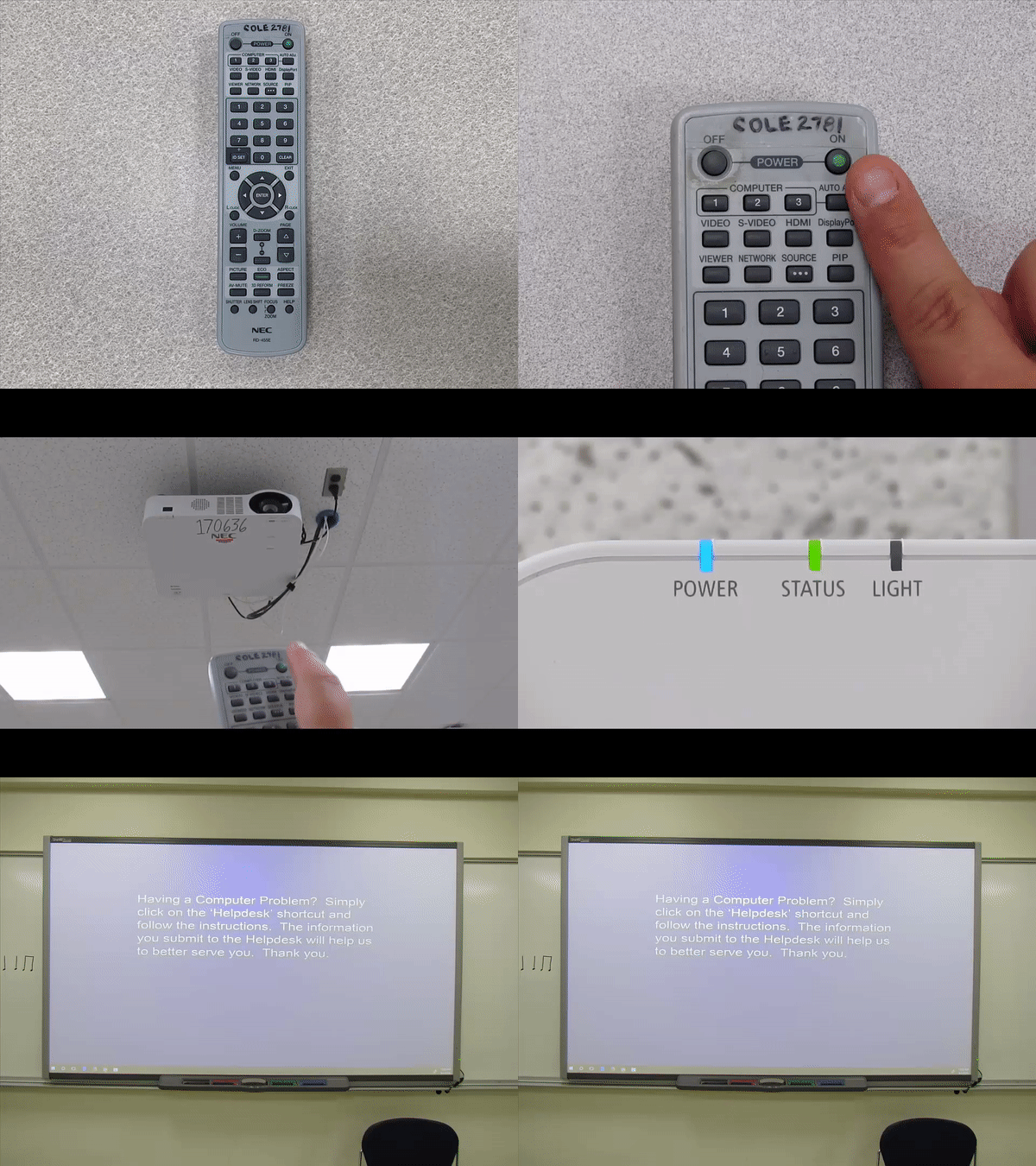
Locate remote for projector, which may be either on top of,or inside the lectern cabinet.
Aim remote at the front of the projector.
Press the "ON" button (the top right button) on the remote.
You may hear an audible beep or the projector fan turn on. These are indicators of success.
If the projector fails to power on, ensure the remote is aimed at the projector and keep trying. If no flashing light appears upon button press on the remote, change the batteries.
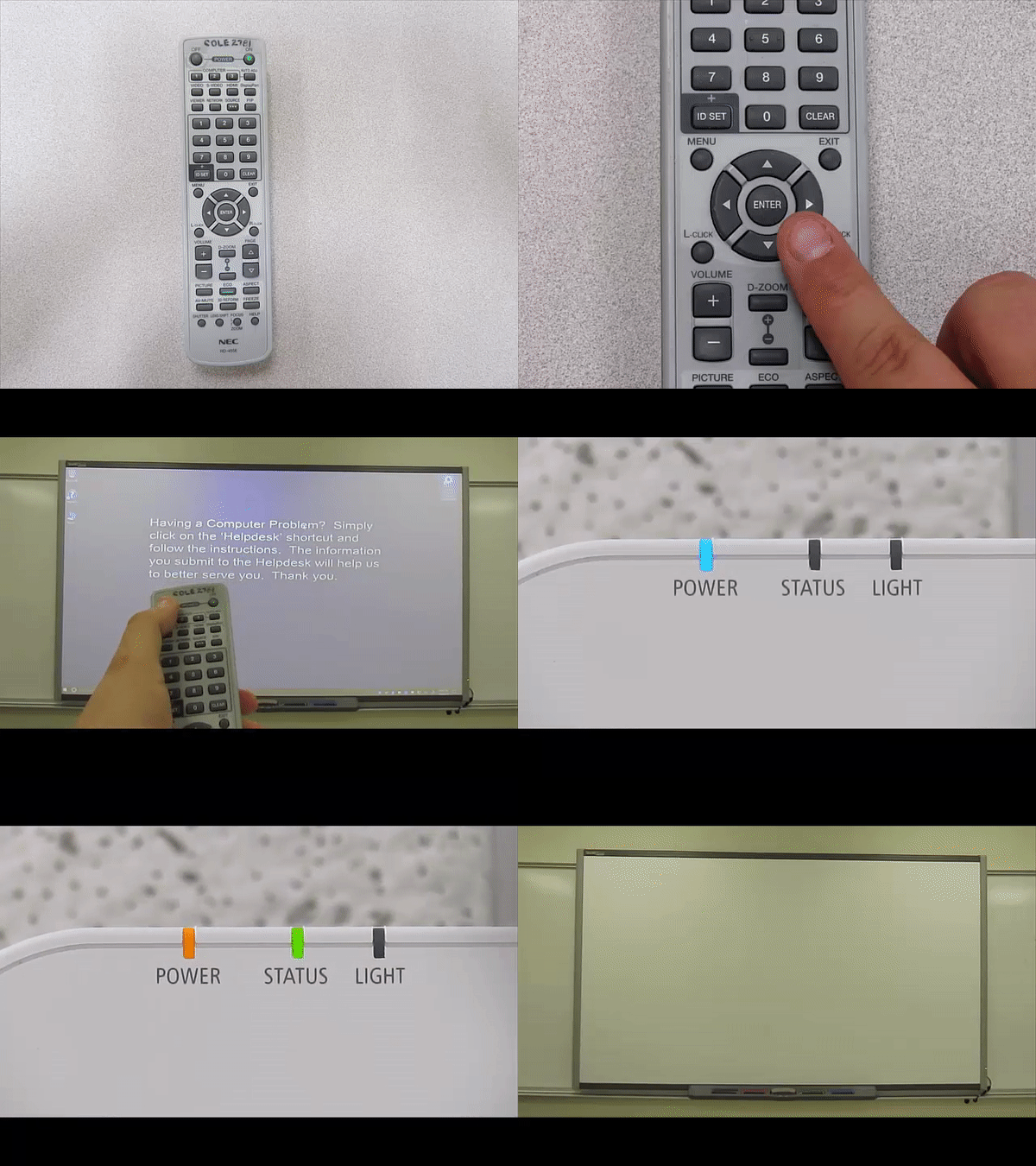 Aim the remote at the projector and press the "OFF" button.
A prompt will appear on the screen asking you to confirm the shutdown of the projector. On the remote, press the "ENTER" button.
Return the remote to the lectern cabinet for the next instructor to use.
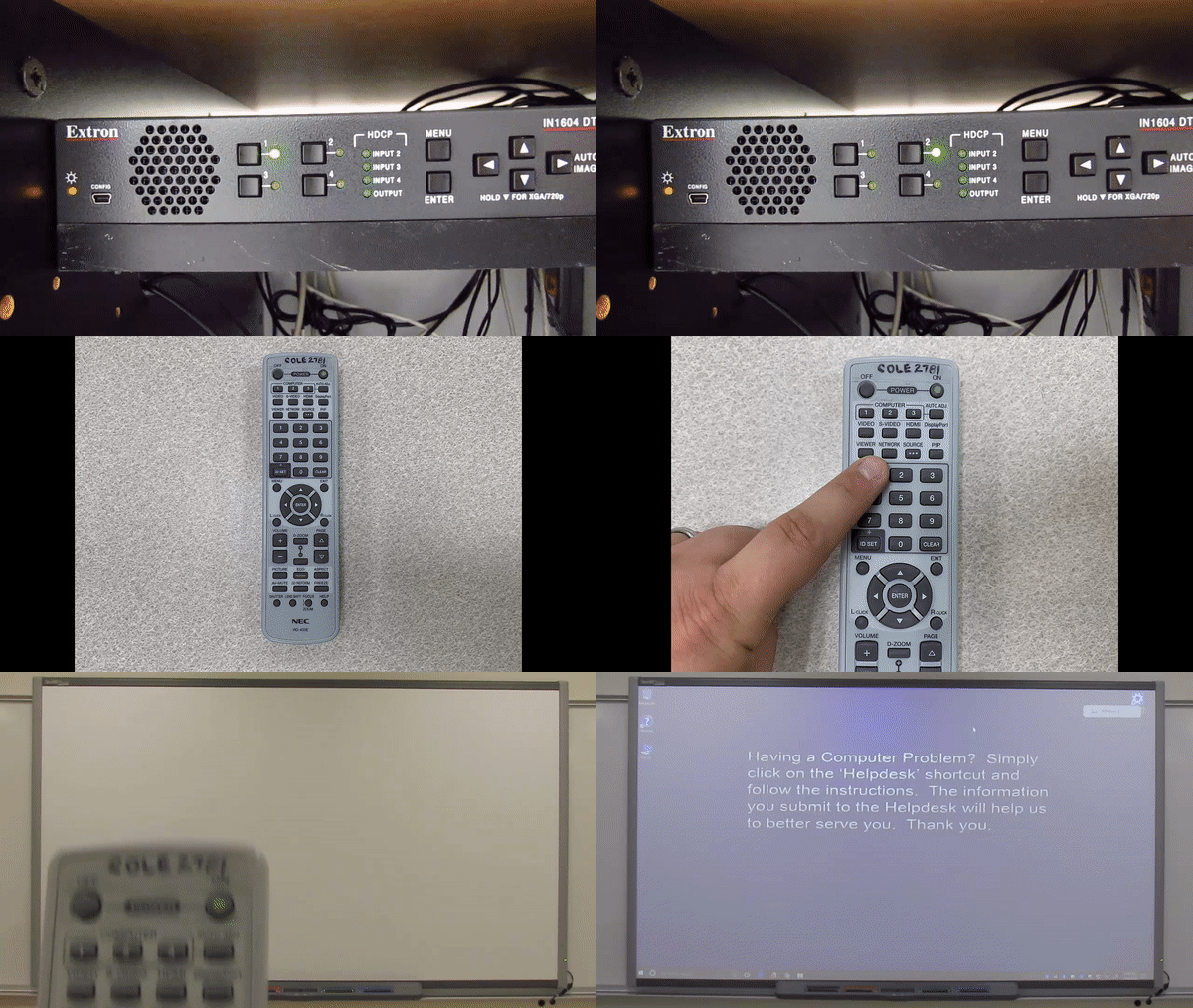
If the projector is turned on, but is displaying a blank blue screen, a blue screen indicating "No Input," or a blue screen stating "This Function Not Availabile!," locate the Extron box in the cabinet on the right side of the lectern.
Ensure that Input 2 is selected.
On the remote, press the "Network" button (button at lower right of top bank of buttons).
If these steps do not remedy the problem, complete ITS help request.How Please do not make further attempts to fix the problem.
Locate the USB cable protruding from the top of the lectern cabinet, near the document camera.
Insert your flash/thumb drive into the USB cable.
Use the computer mouse to click on the folder icon in the taskbar at the bottom of the screen, then choose the name associated with your flash/thumb drive from the list at the left of the window that opens. Your files will appear in a list to the right side of the window.
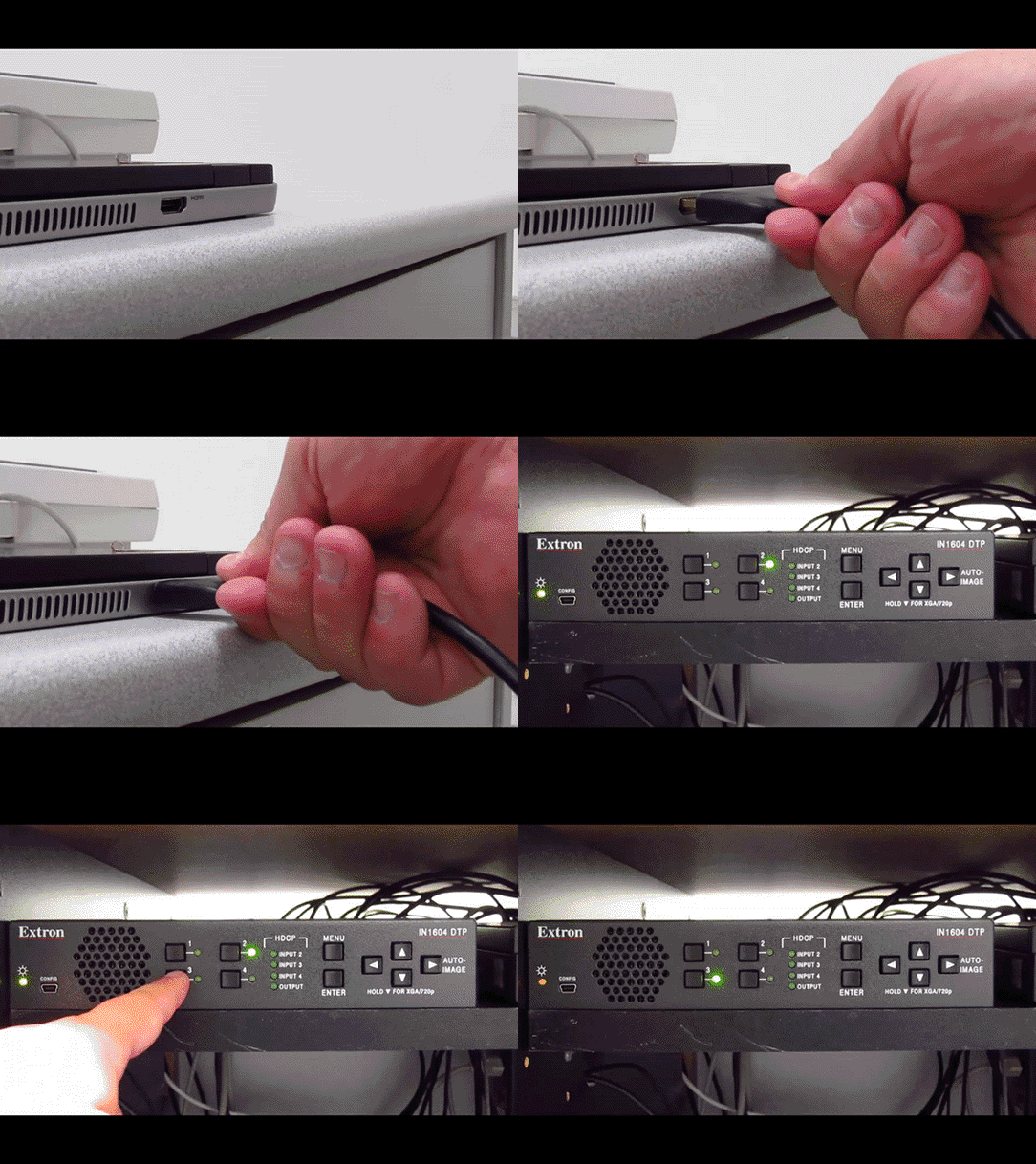 Locate the HDMI cable protruding from the top of the lectern cabinet, near the document
camera.
Locate the HDMI cable protruding from the top of the lectern cabinet, near the document
camera.
Insert HDMI connector into the laptop. If you do not have an HDMI port on your laptop, connecting is still possible through the use of an adaptor appropriate for your laptop. NOTE:I.T.S. does not provide adaptors for this, you will have to obtain your own!
If you require assistance identifying an appropriate adapter, please contact ITS or your Instructional Support Specialist.
With the laptop powered on, locate the Extron box on the right side of the lectern cabinet and press the button to select Input 3.
When finished, press the button for Input 2 on the Extron box to return to displaying the desktop computer.
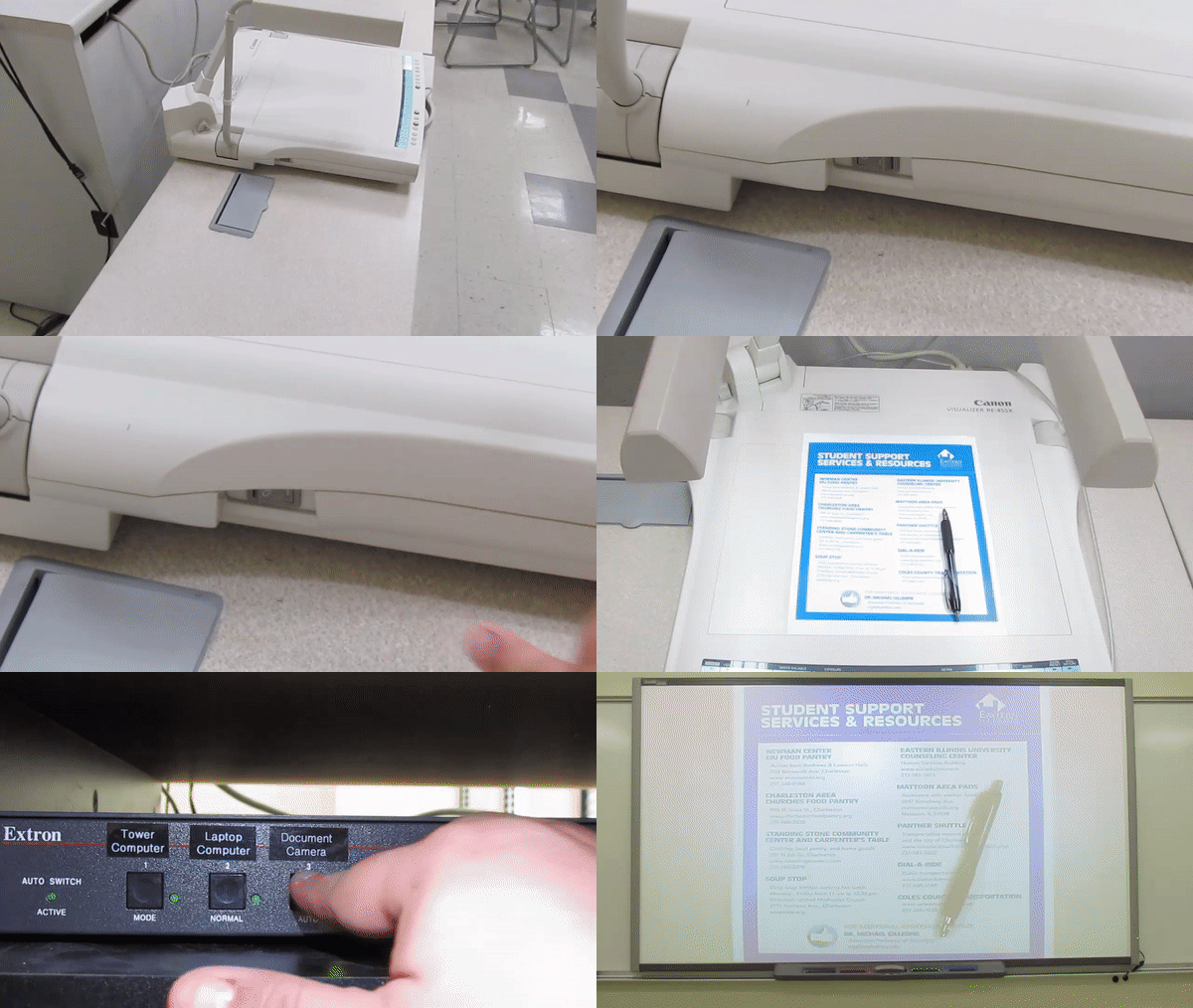
Locate the document camera's power switch on its left side, and turn it on.
On the row of buttons running along the top of the document camera, press the "LIGHTS" button.
Locate the Extron box inside the right side of the lectern cabinet and press the button to select Input 1.
When finished, turn the power switch on the side of the document camera off, and press the button for Input 2 on the Extron box to return to displaying the desktop computer
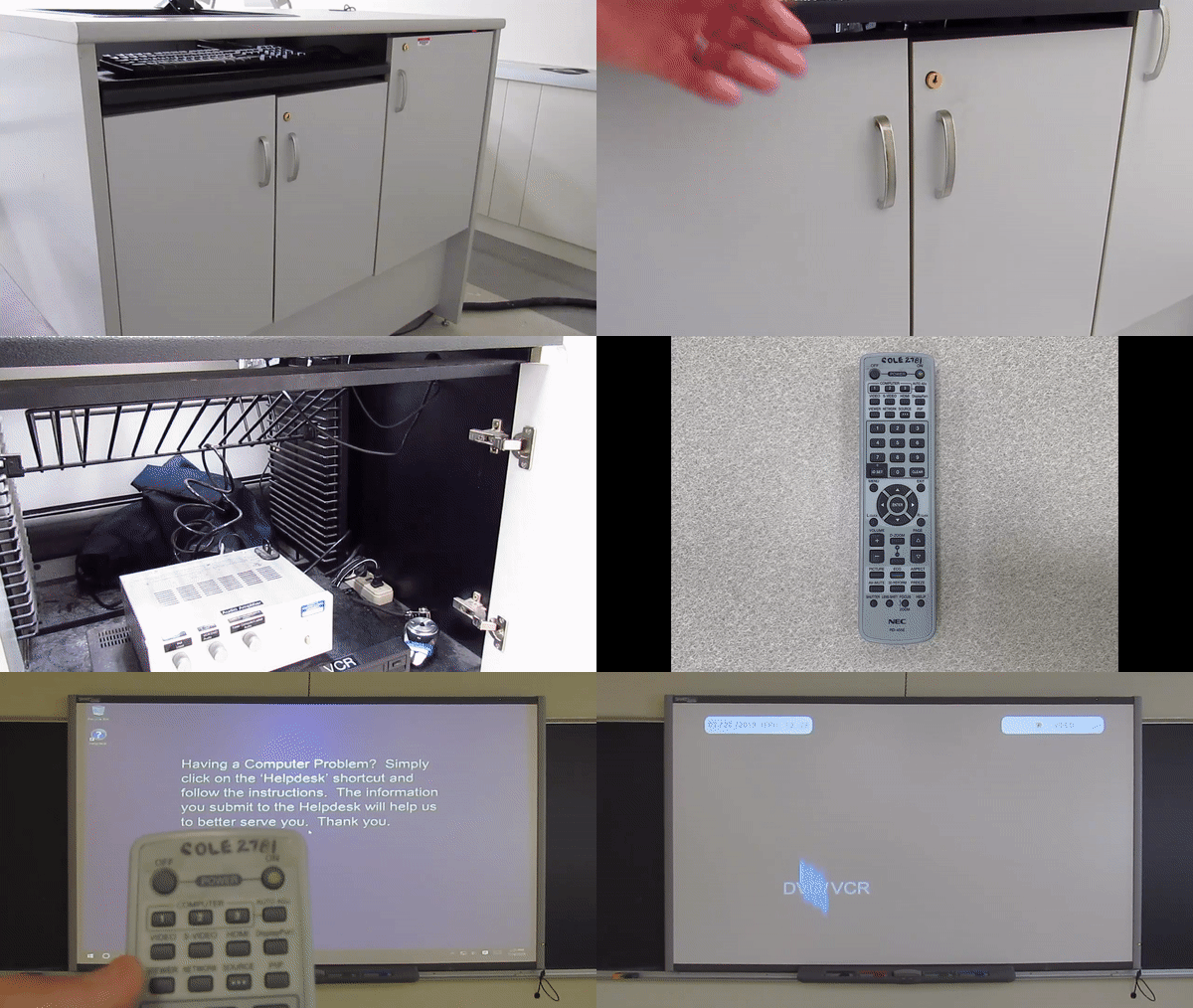
- Locate the DVD/VCR player inside the lectern cabinet, on the left side, and power on the DVD/VCR player
- Insert your media.
- On the projector remote, press the "VIDEO" button.
- Use the controls on the from of the DVD/VCR player to control playback of media.
- When finished, retrieve media from DVD/VCR player and turn it off, then press "NETWORK" on the projector remote to return to displaying the desktop computer.